
What makes a student successful?
Tools: Excel (Formulae, Grouping), SQL (SELECT, GROUPBY, WINDOW), Tableau (Dashboard with pivot tables and dynamic grouping)
Skills: Data Cleaning, Statistics, Data Visualisation
Does parent education affect student results? Financial or Ethnical grouping? Test Preparation?
This project uses the Kaggle dataset ‘Students Performance in Exams’ to consider factors affecting academic success.
Findings were then visualised in an interactive Tableau dashboard, allowing a choice of criteria to investigate.
STEP 1: Obtaining the data
The dataset was obtained from https://www.kaggle.com/datasets/spscientist/students-performance-in-exams?resource=download
STEP 2: Excel
The .csv file was opened in Microsoft Excel and all columns were filtered to check for nulls, duplicates, and unexpected values. Column headings were renamed according to best practices. Additional columns were added to create aggregate results (average across all subjects), and a performance category based on the test scores (Elite, Above Average, Average, Below Average). Finally, an id column was added to act as a unique key. The new file was saved as a csv.
STEP 3: SQL
A table was created in Postgres with the same columns as the saved csv, and the csv imported. A select * from studentdata was used to check the table had been imported correctly and all values were as expected. A mixture of select statements using GROUPBY allowed investigation of test scores based on different parameters, as well as performance tiers.
Functions such as this one allowed deeper analysis across specific data windows.
WITH RankedStudents AS (
SELECT
parental_education,
lunch_type,
overall_average,
DENSE_RANK() OVER (PARTITION BY parental_education ORDER BY overall_average DESC) AS internal_ran
FROM studentdata
)
SELECT * FROM RankedStudents
WHERE internal_rank <= 3;
Further examples of the table creation and simple queries are available in the Postgres SQL file below.
STEP 4: TABLEAU
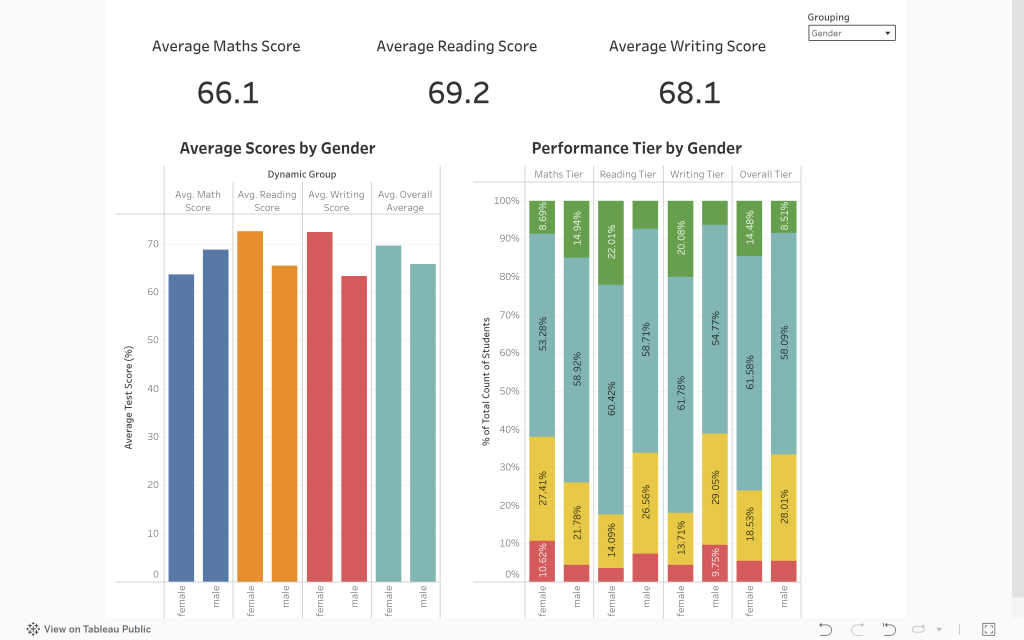
The .csv file was imported into Tableau, and average scores for the three subjects calculated as KPIs. Two main charts were created. The first, a simple bar chart, displays scores in maths/reading/writing and an overall average for a choice of input parameters. This was achieved through the creation of a Dynamic Grouping Parameter. The second, displaying the number of students in each performance tier was created through a pivot table within Tableau for the same choice of input parameter. The results are displayed on a stacked 100% bar chart. In both charts, tool tips are used to display exact values.
Manual sorting and dynamic text labels add clarity to the dashboard. Finally, a highlight action was added to quickly link the two charts. For example, selecting gender = female and looking at maths results in chart one, highlights the same selection in chart two. The image below is a static representation of the dashboard. The dynamic dashboard can be accessed on Tableau Public using the link below.
To view the Postgres SQL file – please click here. To view the dashboard on tableau public – please click here.